The visual editor
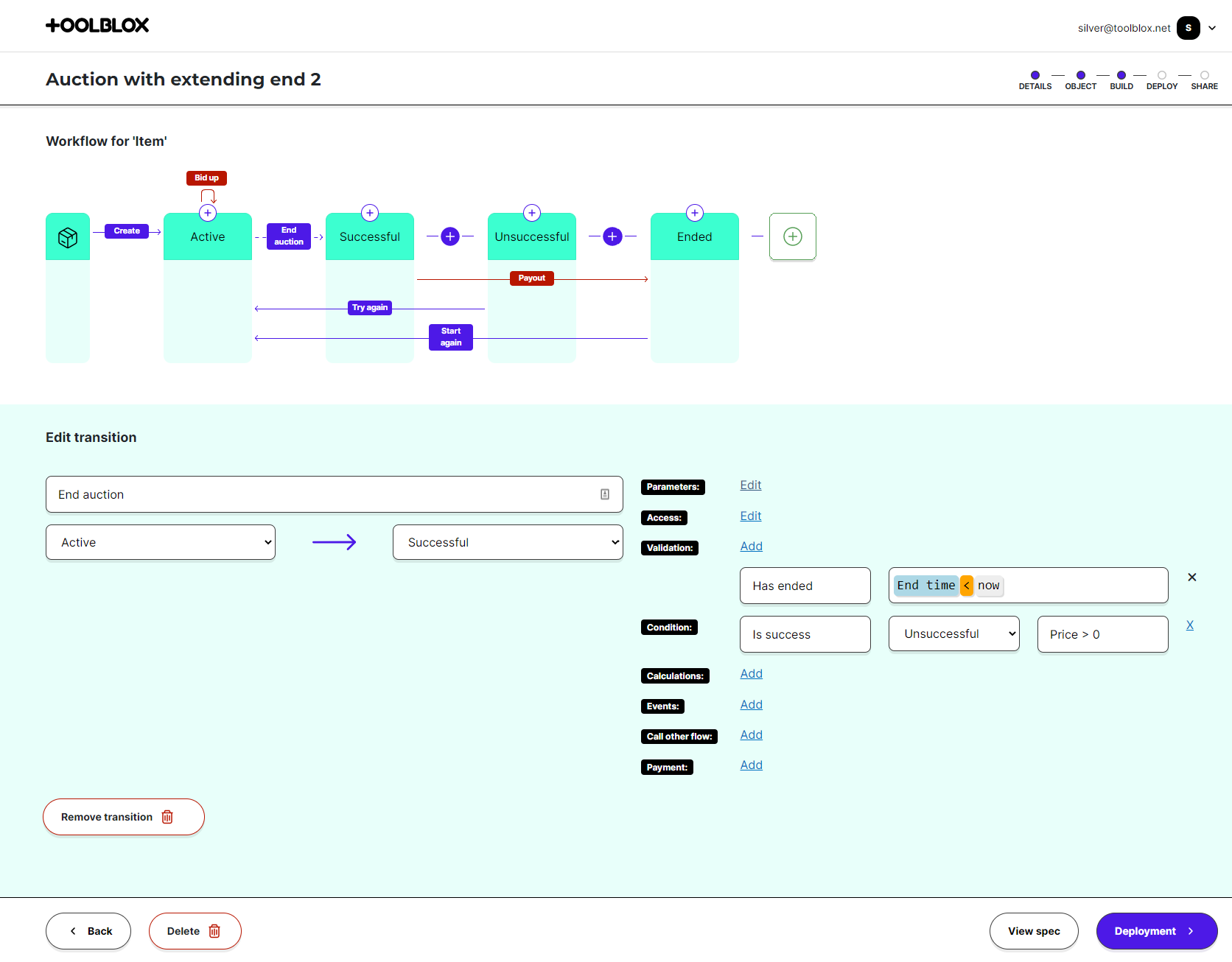
The visual editor — the Contract Maker's Build step — is the canvas where you shape a workflow. The top half is an interactive diagram of your workflow; the bottom half shows the properties of whatever element you've selected. Nothing here requires code.
Reading the diagram
The diagram is your workflow's stategram:
- States are the cells across the canvas — the stages your asset moves through.
- Transitions are the arrows between states — the actions that move an item along. Payment transitions are drawn in red, ordinary ones in blue/purple.
- The asset has its own icon on the left; tap it to edit the item and its properties.
Tap any element to open its settings in the panel below.
Adding and arranging
From the editor you can add:
- a state — a new stage;
- a transition — an action from one state to another;
- a self-transition — an action that keeps the item in the same state (e.g. "Edit details");
- a global transition — an action available no matter which state the item is in.
Use the move buttons on a state to reorder it, until the flow reads naturally from left to right.
Editing a state
Click a state to set its Name (e.g. "Active"), its Owner (the wallet treated as the item's owner while it sits in this state — this matters for NFT standards), reorder it, or remove it.
Editing a transition
Click a transition to open its settings: a Name, the From → To states, a Description, and the ordered steps that run when it executes — parameters, access restrictions, validation, conditional routing, calculations, events, calling other flows and payments. Each step is explained in Transition basics.
Editing the asset
Click the asset icon to change its name and symbol and to manage its properties.
Design-time vs run-time
The diagram you edit here is the design-time stategram. After you deploy, your users see a run-time stategram inside the Asset Dashboard: the same picture, but read-only, highlighting each item's current state and the actions available next.
Related
- Items · States · Transitions
- Create with AI — draft a workflow, then refine it here.
- Deploy your smart contract — when it's ready.